

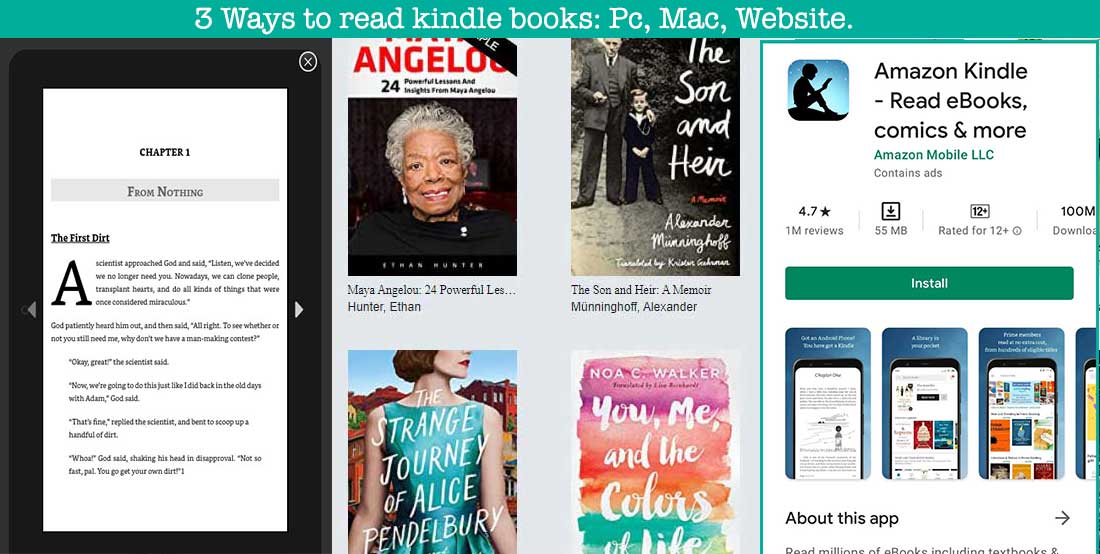
3 ways to read kindle books on PC or Mac or Website
Nowadays this is different, readers have found the best solution which is Ebooks. Digital books are the best solution since you can carry all the books you want in the palm of your hand, the only thing that limits the number of books you can carry is your GB of space, and you can read them anywhere you want.
Now we want to show you the best 3 ways to read kindle books on PC or Mac or Website.
1. Kindle Previewer
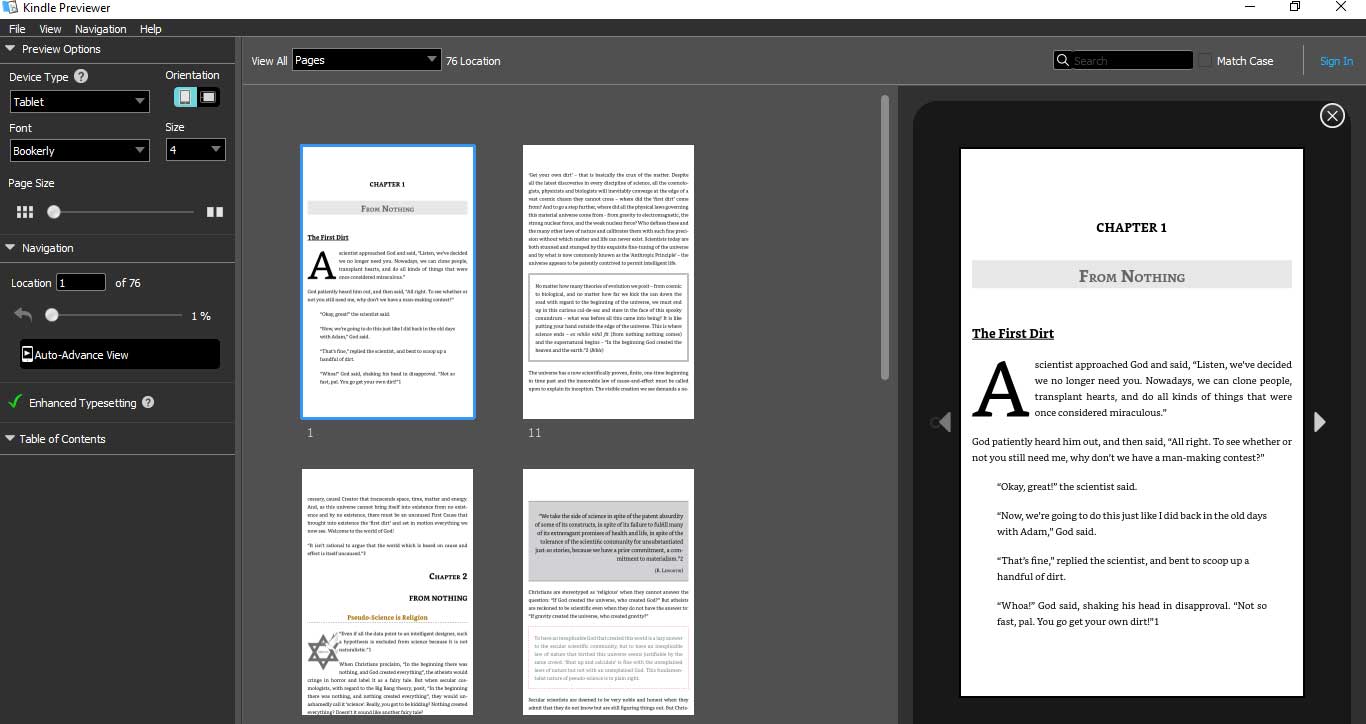
Kindle Previewer is a tool that allows publishers and authors to see how their files will look when sent to Kindle users, as well as auditing them for multiple devices. This program allows evaluating your file with Enhanced Typesetting’s latest typography and layout upgrades.
The Kindle Previewer v3 technology allows you to see how your files look during formatting and you can see how it looks even before publishing it. Enhanced Typesetting is now available in Kindle Previewer, giving you a more accurate picture of your book’s layout as it appears on customers’ devices. Without having to walk through the full book, you may get a preview of crucial parts of your Enhanced Typesetting enabled book.
How to use Kindle Previewer 3?
First of all, you need to install the program. Fortunately, you can download Amazon Kindle Previewer 3 for free. When you have followed the steps to install this program, you can start to open, convert and preview a book. There are several functions in kindle previewer that will help you perform better in this program, some of these are:
Steps to open eBooks on Kindle Previewer 3
Now we want to show you how to open files on Kindle Previewer 3:
- First of all, you have to download the file that you need to read on Kindle Previewer 3.
- These are the files that you can read on Kindel Previewer 3: .epub, .kpf, .mobi, .htm, .html, .xhtml, .opf, .doc and .docx.
- When you have your eBook, you can open it by dragging the file and dropping it into the dot-delimited box in Kindle Previewer.

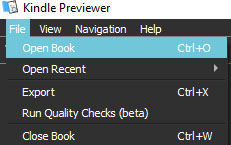
- Or open it by clicking “File” and “Open Book”, then select your eBook.
Enhanced Typesetting
Enhanced Typesetting is a set of typographic and layout enhancements that improve the reading experience while reducing eye strain. Books with Enhanced Typesetting support also have special Kindle capabilities like Page Flip.
Command-line option
Kindle Previewer’s command-line option allows you to check several books for publishing issues. It also facilitates reviews by providing a summary of the state of validation. If your book supports Enhanced Typesetting, you can open it in Kindle Previewer’s graphical user interface using the KPF file instead of converting it.
You can use a command-line interface on your Windows or Mac OS X machine to manually run Kindle Previewer. It’s also possible to incorporate it into an automated procedure.
2. Kindle App
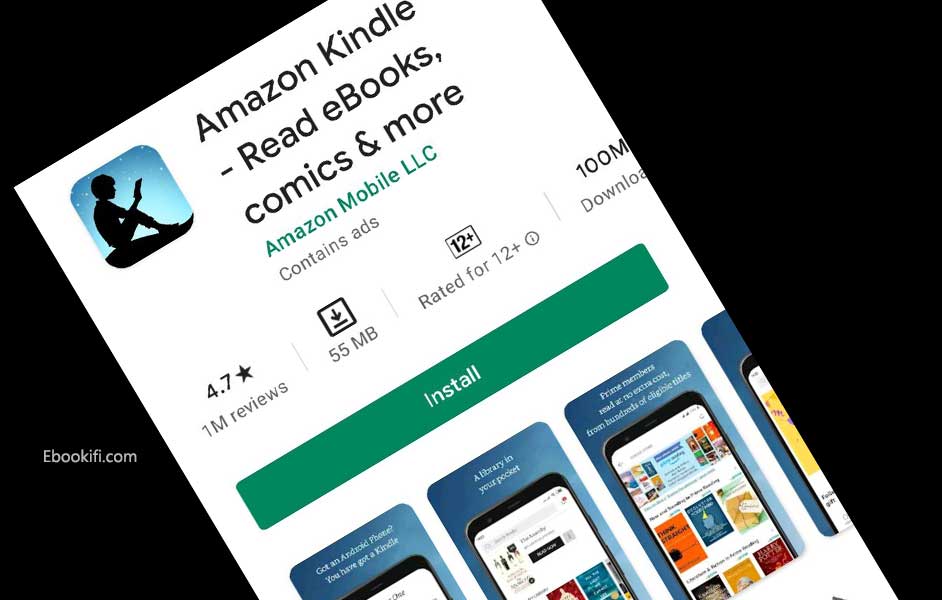
The Kindle app is a great alternative for the Amazon Kindle device. More than 2.5 million eBooks are available on the Kindle Store, with over 45,000 of them costing less than $50. There are also free excerpts and over 500,000 Amazon-exclusive titles available. So this app is completely free. If you want to use it without buying books, you can just download the free content and use the app without paying.
With the free Kindle reading application, you can buy a Kindle eBook and read it immediately on your Kindle device, on your computer, tablet, or smartphone. And with Whispersync, you can synchronize the last page you read, the bookmarks, and all the notes on all your devices so that you can resume reading from the point where you left off.
You can personalize your reading experience by choosing the space of the margins, the background color, the font size, or if you prefer to read horizontally or vertically. In addition, with the functions of vocabulary, add notes to the text or underline, the Kindle free reading application gives a great reading experience with all these features. You can download this app on a lot of devices like your smartphones or tablets and in any type of system, either iOS or Android. There is also a PC version, download the PC Kindle App on the Amazon official page.
Steps to open eBooks on Kindle App
Now we will show you the steps to open your eBooks on your Kindle App:
- First, you have to download the eBooks files that you want to open on your Kindle App.
- These are the files that you can open on the Kindle App: .KPF, .MOBI, .DOC, .DOCX, .PDF, .TXT, .AZW, .MOBI, .RTF, .PRC, .PSZ.
- When you have your file, you have to send it to your Amazon email, this is needed to read it on your Kindle App.
- Now you have to install the Kindle App on your devices. You just have to go to your device’s store and search “Kindle App” and download it.
- Then you have to register in the app. Sign in to your Amazon account if you are already registered.
- Now you have to download your file from your Amazon account.
- Then you have to locate the file on your device.
- Then, copy and paste the file on the Kindle Folder.
- Open your Kindle App and your file will be under the “on device” part.
And with these steps, you should be able to open your files on your Kindle App.
3. Kindle Cloud Reader
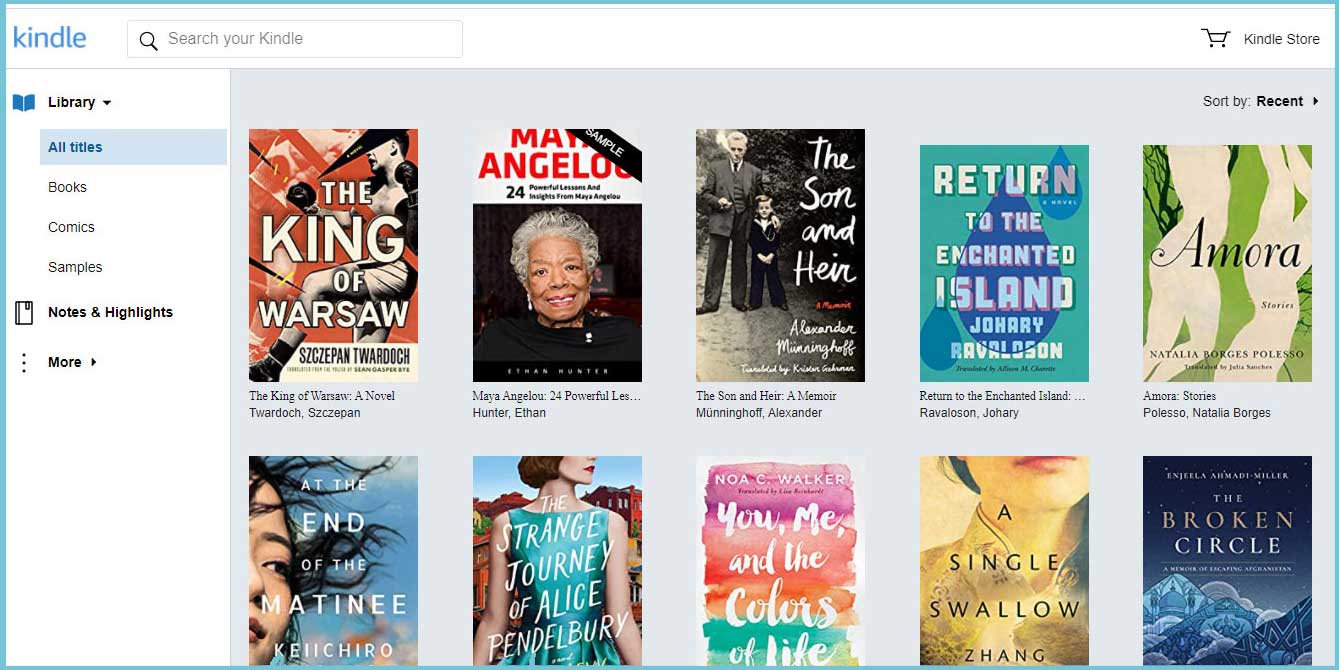
Amazon has developed a ‘cloud’ web version of its e-book reader called the Kindle Cloud Reader. The Kindle Cloud Reader transfers the kindle experience to the web browser faithfully and consistently with what has been known so far – physical Kindle readers and multi-platform applications – in a free web service. And it works surprisingly well.
So, in essence, the Kindle Cloud Reader allows any customer of the Amazon store to access and read their books on almost any computer or device with a supported web browser: Chrome, Firefox, and Safari. Except for mobile phones, which for now must continue to use the Kindle App.
From Kindle Cloud Reader it is even possible to buy and expand the library. Even if you are accessing from an internet cafe or your own computer. And it also supports the WhisperSync feature, which saves the status of the book, notes, marks, highlights, and the page where the reading was left.
Thus, the reading can be resumed at the exact point where it was left the last time. Regardless of the place from the place where the book is accessed.
Above are the 3 best readers to read the kindle books. In case, if you see any distraction or kindle conversion issues then please do contact us, we will do the hand code kindle conversion services that will work on all digital devices.
