

How to Write an eBook and Sell It Online in 2026 (12 Steps)
Last updated: September 2026 — rewritten as a complete guide from first idea to published eBook.
Writing an eBook is one of the most rewarding ways to share your story, expertise, or passion — and in 2026 anyone can publish one worldwide for free. But a book that sells takes more than typing: it needs the right topic, a clear structure, careful editing, a professional cover, and correctly formatted files.
This guide shows you how to write an eBook, publish it, and sell it online, step by step — including how to set up your manuscript from day one so it converts cleanly to Kindle and EPUB later.
How to write and sell an eBook online: 12 steps
- Choose a topic readers are searching for
- Define your reader and your book’s promise
- Outline your chapters
- Set up your manuscript in a clean Word template
- Write the first draft
- Revise, then edit and proofread
- Choose your title and subtitle
- Get a professional cover
- Format your eBook as Kindle and EPUB files
- Choose where to sell
- Upload and publish
- Price and launch your book
In this guide
Part 1: Writing Your eBook
Step 1: Choose a Topic Readers Are Searching For

The best eBook topics sit where three things overlap: something you know or care deeply about, something readers actively look for, and something you can say in a fresh way.
- Browse Amazon’s Kindle bestseller lists in your area of interest to see what readers are buying.
- Type your topic into Amazon’s search bar and note the autocomplete suggestions — these are real reader searches.
- Read the 3-star reviews of popular books on your topic. They tell you exactly what readers wished those books had done better — your opening.
Step 2: Define Your Reader and Your Book’s Promise
Write one sentence that describes who your book is for and what it gives them. For non-fiction: “This book helps first-time gardeners grow vegetables on a balcony in one season.” For fiction: the genre, the hero, and the central conflict. Every chapter should serve that promise — if it doesn’t, cut it.
Step 3: Outline Your Chapters
An outline is the fastest way to finish a book. List your chapters, then add three to five bullet points under each: the key ideas for non-fiction, or the main scenes for fiction. You’ll see gaps and repetition before you’ve written a word, and you’ll never face a blank page wondering what comes next.
Step 4: Set Up Your Manuscript in a Clean Template
This step saves more time and money than any other — and most first-time authors skip it. How you set up your document now decides how cleanly it becomes an eBook later.
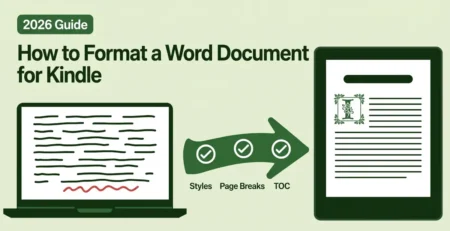
- Use Word’s built-in styles — Heading 1 for chapter titles, Normal for body text — instead of making text bigger and bold by hand. Styles become your eBook’s clickable table of contents.
- Don’t use spaces or tabs to indent paragraphs, or repeated Enter presses to start a new page. Use paragraph indent settings and page breaks.
- Insert images “in line with text”, not floating.
Our free Word manuscript templates — for novels, non-fiction, poetry, cookbooks, and more — have all of this set up for you. For the full detail, read how to format a Word document for Kindle.
Step 5: Write the First Draft

The first draft only has one job: to exist. Keep it moving.
- Set a daily word target and a fixed writing time. At 500 words a day, a 30,000-word non-fiction book is a first draft in about two months.
- Don’t edit while you draft. Mark problems with a note like [FIX] and keep going.
- Write in plain, clear language. Short sentences and short paragraphs read best on phone and e-reader screens.
- Only use images you have the rights to — your own photos, properly licensed stock, or public domain images. “Found on Google” is not a licence.
Using AI tools? When you publish on Amazon, KDP’s content guidelines ask you to declare any AI-generated content — text, images, or translations created by AI tools. If you wrote the book yourself and used AI only to brainstorm, edit, or refine it, that counts as AI-assisted and doesn’t need declaring. Readers buy your voice and experience, so use AI as a helper, not the author.
Step 6: Revise, Then Edit and Proofread
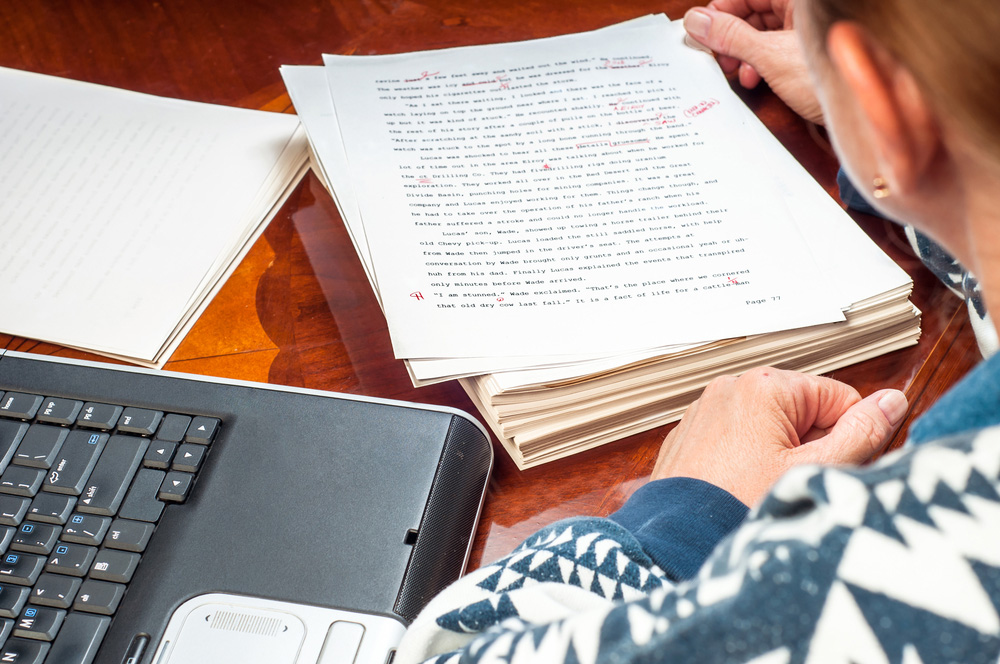
Put the finished draft away for at least a week, then read it again with fresh eyes. Revise in three passes:
- Structure — Does every chapter keep the book’s promise? Is anything missing, repeated, or in the wrong order?
- Clarity — Cut filler, simplify long sentences, and make sure each paragraph has one point.
- Proofreading — Read the book aloud; your ear catches what your eye misses.
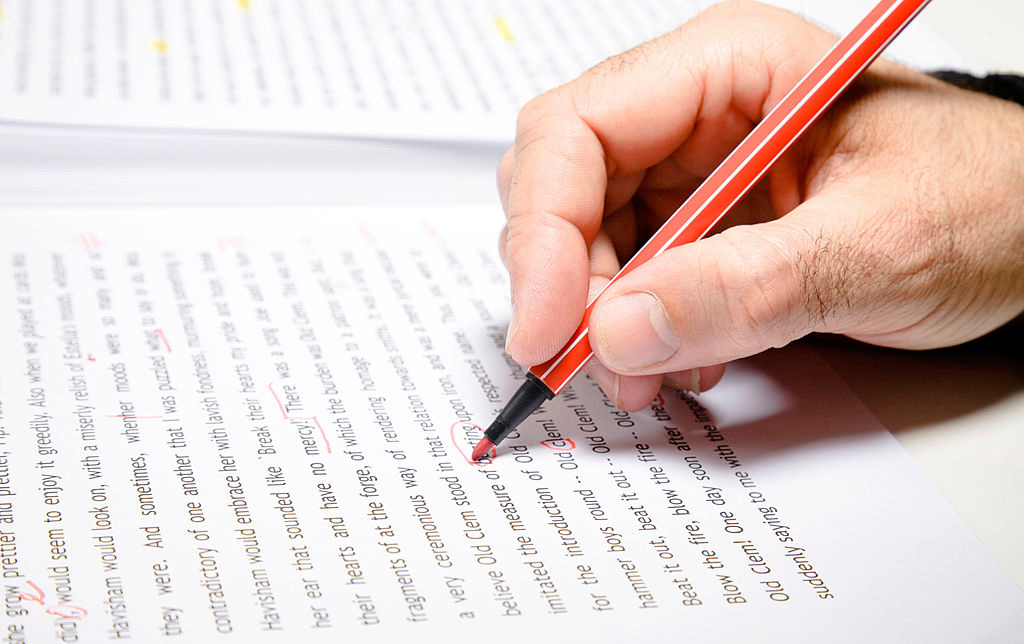
Then share it with a few honest beta readers from your target audience — not only friends and family. If your budget allows, a professional editor is the single best investment in your book’s reviews: typos and plot holes are the most common reasons for early one-star ratings.
Part 2: Publishing Your eBook
Step 7: Choose Your Title and Subtitle
Your title should be short, memorable, and fit the genre. For non-fiction, the subtitle does the heavy lifting: it tells readers — and Amazon’s search — exactly what the book delivers, as in “Balcony Harvest: How to Grow Vegetables in Small Spaces in One Season”. Search Amazon to check your title isn’t already used by a popular book, and keep the full title and subtitle readable — long, keyword-stuffed titles look spammy and break KDP’s metadata rules.
Step 8: Get a Professional Cover
Readers really do judge an eBook by its cover — usually as a small thumbnail in Amazon search. A cover needs to signal the genre instantly and keep the title readable at a tiny size. Amazon recommends 2,560 × 1,600 pixels for Kindle eBook covers; our cover size guide lists the sizes for every store. For a cover designed around your genre, our cover design service starts at $40.
Step 9: Format Your eBook as Kindle and EPUB Files
eBook stores don’t sell Word documents or PDFs. They need proper eBook files:
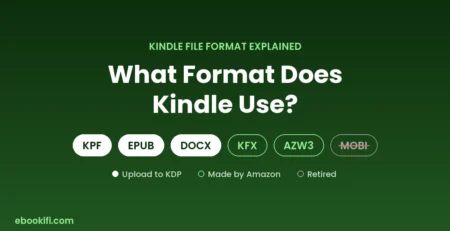
- Amazon KDP accepts DOCX, EPUB, or KPF files. (MOBI is no longer accepted.)
- Apple Books, Kobo, Google Play, and Barnes & Noble use EPUB.
- A paperback needs a print-ready PDF interior.
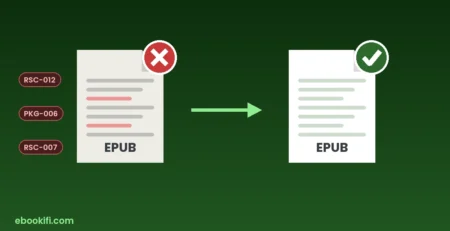
Our guide to eBook formats explains each one. Automated converters often produce broken tables of contents, odd spacing, and files that fail validation. Before publishing, work through our Kindle Formatting Checklist — or have your book hand-coded with our Kindle conversion and ePub conversion services, from $30.
Step 10: Choose Where to Sell
| Where | File needed | Good to know |
|---|---|---|
| Amazon KDP | EPUB, KPF, or DOCX | The largest eBook store. Free to publish; 70% royalty from $2.99 to $12.99. |
| Apple Books, Kobo Writing Life, Google Play Books, Barnes & Noble Press | EPUB | Each store has its own free publishing portal. |
| Aggregators (e.g. Draft2Digital) | EPUB or DOCX | Upload once and distribute to many stores and libraries, for a share of each sale. |
| Your own website | EPUB and PDF | You keep the most per sale, but you bring all the traffic yourself. |
One important choice: if you enroll your eBook in KDP Select (for Kindle Unlimited), it must be exclusive to Amazon for each 90-day term. To sell on every store instead, you’ll want both a Kindle file and an EPUB — our Kindle + ePub Bundle delivers both.
Step 11: Upload and Publish
On Amazon, publishing takes three tabs: details (title, description, categories, and keywords), content (your manuscript and cover), and pricing. You don’t need an ISBN for a Kindle eBook — Amazon assigns its own identifier, the ASIN. Follow our step-by-step guide: how to upload a book on Amazon Kindle in 2026.
Step 12: Price and Launch Your Book
Most eBooks sell best between $2.99 and $4.99, and anything from $2.99 to $12.99 earns KDP’s 70% royalty. Check your earnings with our free KDP royalty calculator.
Start building readers before launch: tell your email list and social followers, share sample chapters, and consider a pre-order. After launch, gather honest reviews and keep refining your categories and keywords. Our guide on how to increase eBook sales on Amazon covers 10 proven strategies.
How Much Does It Cost to Publish an eBook?
Publishing on Amazon KDP, Apple Books, Kobo, and Google Play is free. Your real costs are the professional help you choose to pay for:
| Item | Typical cost |
|---|---|
| Publishing on KDP and most stores | Free |
| Editing and proofreading | Varies with length and level of editing |
| eBook cover design | From $40 with Ebookifi |
| Kindle or ePub conversion | From $30 (both formats from $40) |
| ISBN (optional for Kindle eBooks) | Varies by country |
See all our prices on the pricing page.
Frequently Asked Questions
How long does it take to write an eBook?
It depends on length and how much time you write each day. At 500 words a day, a 30,000-word book takes about two months to draft, plus time for revision, editing, cover design, and formatting.
Can I write an eBook in Microsoft Word?
Yes — Word is the most common tool for writing eBooks. Use its built-in heading styles and a clean template so the file converts cleanly to Kindle and EPUB. Our free templates are set up for this.
How many pages should an eBook be?
There is no minimum for Kindle eBooks. Many practical non-fiction eBooks are 20,000–40,000 words, and novels are usually longer. Write as much as the book’s promise needs — no more, no less.
Do I need an ISBN to publish an eBook?
Not on Amazon KDP — Kindle eBooks receive a free ASIN. Some other stores and distributors may ask for an ISBN or provide one, so check each store you plan to use.
Can I use AI to write my eBook?
You can use AI tools, but KDP requires you to declare AI-generated text, images, or translations when you publish. Content you wrote yourself and only edited with AI help doesn’t need declaring.
Can I publish my eBook for free?
Yes. Publishing on Amazon KDP and the major eBook stores costs nothing — the stores take a share of each sale instead.
Finished writing? We’ll make it store-ready.
Hand-coded Kindle and ePub files, validated and tested on real devices, delivered in 72 hours — from $30. New customers save 15% with code FIRSTBOOK.

Leave a Reply