How to Upload a Book on Amazon Kindle in 2026 (Step-by-Step)
Last updated: September 2026 — reflects KDP’s current file formats, the $2.99–$12.99 royalty band, three categories, and 18-month pre-orders.
Uploading a book to Amazon Kindle is free, and you can do it in about an hour once your files are ready. You create a Kindle Direct Publishing (KDP) account, enter your book’s details, upload your manuscript and cover, set your price, and publish — Amazon then makes your eBook available within 72 hours.
This step-by-step guide walks through every screen of the KDP process as it works in 2026, including the settings most first-time authors get wrong.
How to upload a book on Amazon Kindle — quick steps
- Sign in at kdp.amazon.com and complete your tax and payment details.
- Click + Create and choose Kindle eBook.
- Enter your book details — title, author, description, categories, and keywords.
- Upload your manuscript (DOCX, EPUB, or KPF) and your cover.
- Answer the AI-generated content question and preview your book.
- Choose your royalty option and price.
- Click Publish — your eBook goes live within 72 hours.
In this guide
- Before You Start: What You Need Ready
- Step 1: Create Your KDP Account
- Step 2: Create a New Kindle eBook
- Step 3: Enter Your Kindle eBook Details
- Step 4: Upload Your Manuscript and Cover
- Step 5: Set Your Price and Royalty
- Step 6: Publish Your Kindle eBook
- After You Publish
- Common Reasons KDP Rejects or Delays a Book
- Frequently Asked Questions
Before You Start: What You Need Ready
Having these prepared turns publishing into a one-sitting job instead of several abandoned drafts:
- Your manuscript file — a formatted Word document (DOCX), an EPUB, or a KPF file. KDP no longer accepts MOBI files. If you are starting from Word, follow our guide to formatting a Word document for Kindle or use one of our free Word templates.
- Your cover image — KDP recommends 1,600 × 2,560 pixels (width × height), RGB, JPEG, under 5MB. See our eBook cover size guide.
- A book description of up to 4,000 characters — the sales copy on your Amazon page.
- Seven keyword ideas and three category choices.
- Your price — use our KDP Royalty Calculator to compare royalties first.
- Tax and bank details for getting paid.
Step 1: Create Your KDP Account
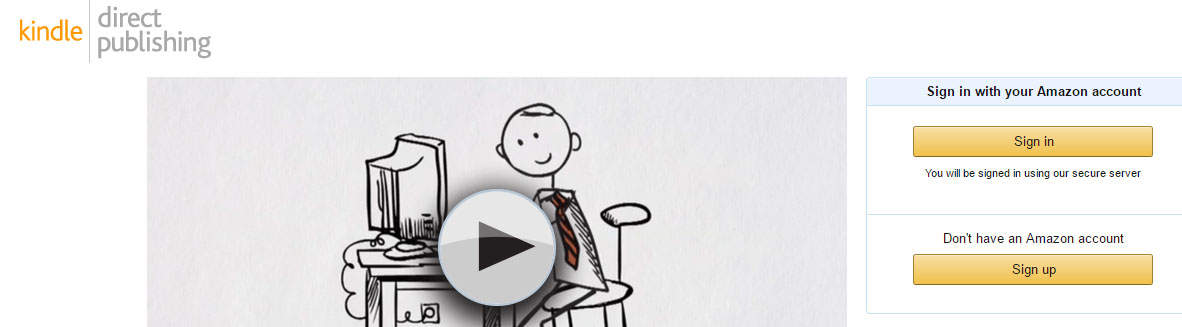
Go to kdp.amazon.com and sign in with your existing Amazon account, or create a new one. You can publish without finishing your account details, but you won’t be paid until you complete two sections under Your Account:
- Tax information — KDP’s tax interview asks for your details and determines how much (if any) US tax is withheld from your royalties. Authors outside the US may qualify for a reduced rate under a tax treaty, so complete it carefully.
- Getting paid — add your bank account for direct deposit, the fastest and most reliable way to receive royalties.
Note: the screenshots in this guide are from an earlier version of KDP. The fields are the same, but the layout has changed, and a few limits shown in them are out of date. Where they differ, the text follows KDP’s current rules.
Step 2: Create a New Kindle eBook
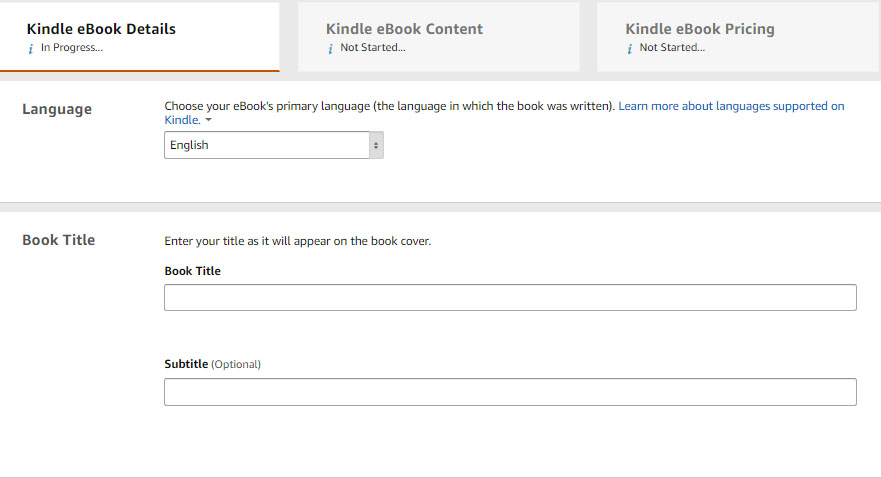
On your Bookshelf, click + Create, then choose Kindle eBook. KDP splits the process into three tabs — Kindle eBook Details, Kindle eBook Content, and Kindle eBook Pricing — and you can save and come back to any of them.
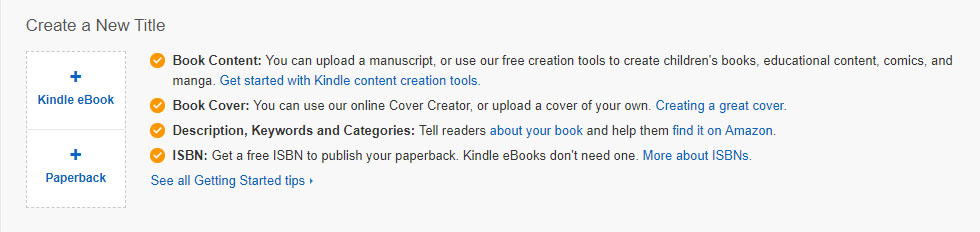
Older screen: today, click + Create on your Bookshelf, then choose Kindle eBook.
Step 3: Enter Your Kindle eBook Details
Language, Title, and Subtitle
Choose the language your book is written in, then enter your title and optional subtitle. They must match your cover and title page exactly — mismatches are one of the most common reasons KDP rejects a book.
Series and Edition Number
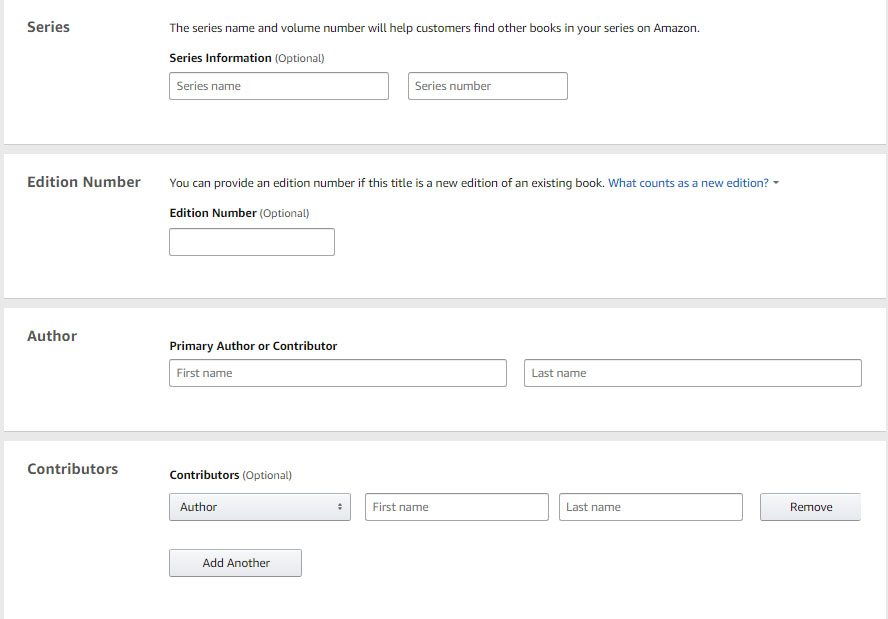
If your book is part of a series, add the series name and its number so Amazon links the books together. Edition number is optional and only needed for a genuinely revised edition.
Author and Contributors
Enter the author name exactly as it appears on the cover. Add co-authors, editors, illustrators, or translators as contributors.
Description
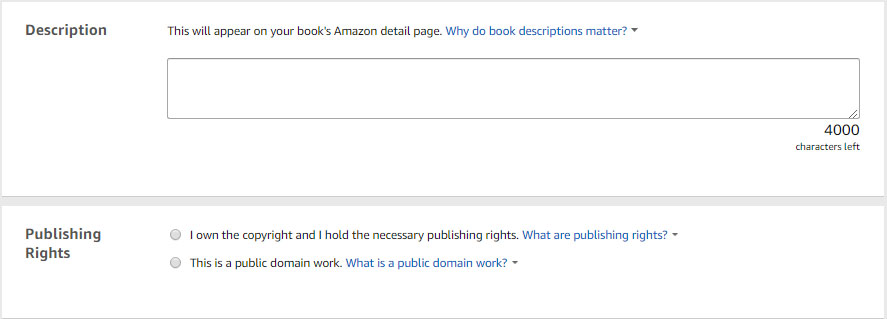
Your description appears on your book’s Amazon page and is often what convinces a browser to buy. You have up to 4,000 characters. Open with a strong hook, keep paragraphs short, and use KDP’s formatting tools for bold or italic text sparingly.
Publishing Rights
Select “I own the copyright and I hold the necessary publishing rights” for your own work. Choose the public domain option only if the book is mainly public-domain content — those books are limited to the 35% royalty option.
Primary Audience
Answer whether the book contains sexually explicit images or title language, and optionally set a reading age. For children’s books, the reading age matters: KDP only places a book in its Children’s categories when the reading age is set to one of its children’s ranges.
Primary Marketplace
Choose the Amazon store where you expect most of your sales — for most English-language authors, Amazon.com.
Categories
You can choose up to three categories. Pick specific sub-categories that honestly match your book rather than broad top-level ones — a book is easier to find, and more likely to rank, in a focused category. See KDP’s categories guide.
Keywords
You have seven keyword boxes. Use all seven, and fill them with phrases readers actually search for — genre, setting, themes, character types, or the problem your book solves. Don’t repeat words already in your title or use other authors’ names.
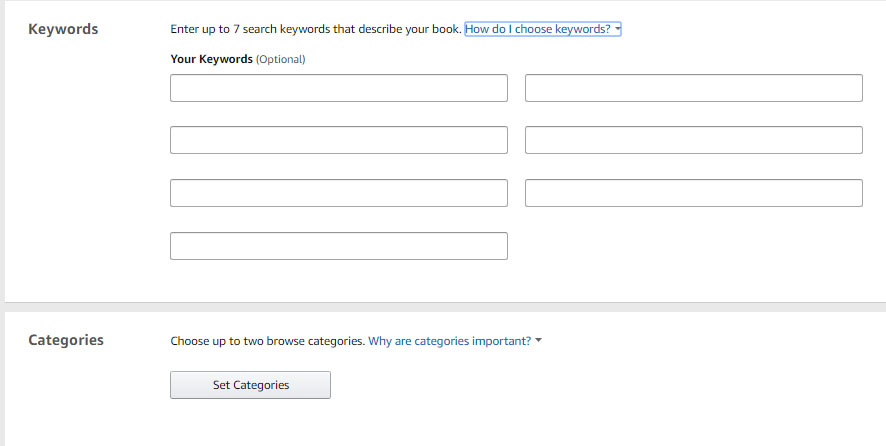
Older screen: KDP now lets you choose up to three categories, not two.
Release Option: Publish Now or Pre-Order
Choose “I’m ready to release my book now”, or set up a pre-order to let readers order before launch. Pre-orders can be scheduled up to 18 months ahead (for pre-orders created from 2 September 2026), and your final manuscript must be uploaded at least 72 hours before the release date — miss it, and the pre-order is cancelled. See KDP’s pre-order rules.
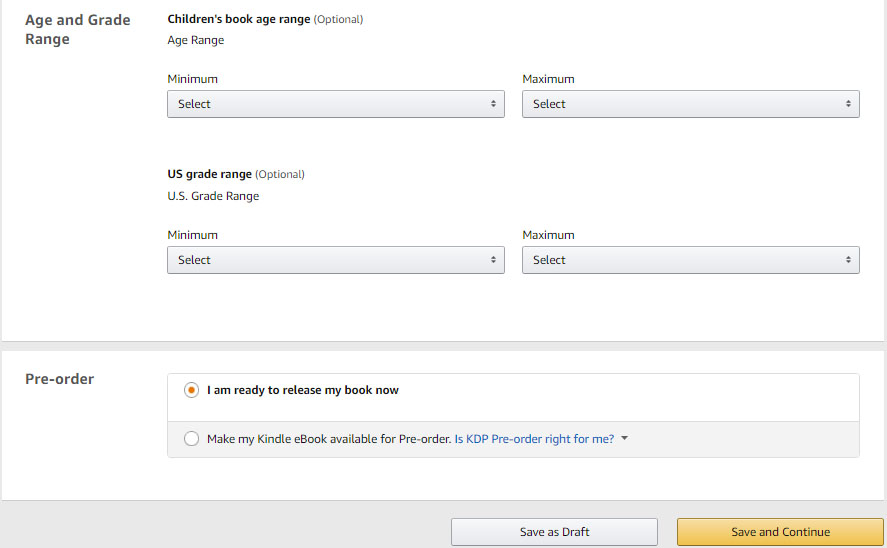
Older screen: the age fields now sit under Primary Audience.
Click Save and Continue.
Step 4: Upload Your Manuscript and Cover
Digital Rights Management (DRM)
KDP asks whether to apply DRM, which is meant to discourage unauthorised copying. Decide carefully: once your book is published, this setting cannot be changed.
Manuscript
Upload your manuscript. KDP accepts DOCX, EPUB, and KPF as its main formats — MOBI is no longer supported, so any older guide telling you to upload a .mobi file is out of date.
- DOCX works for simple, text-only books with clean paragraph styles.
- EPUB or KPF gives the most control and the most reliable result, especially for books with images, tables, footnotes, or special formatting.
Most upload problems — broken tables of contents, stray spacing, oversized files — start in the manuscript, not in KDP. If you want a file that converts cleanly the first time, a professional Kindle conversion builds it by hand and checks it in Kindle Previewer before delivery.
Kindle eBook Cover
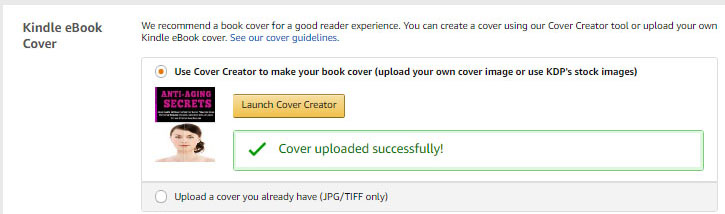
Upload your cover as a JPEG or TIFF, ideally 1,600 × 2,560 pixels. KDP also offers a free Cover Creator, but a template cover is rarely competitive against professionally designed covers in your genre. The cover must show the same title and author name you entered in Step 3 — see our cover design packages if you need one.
AI-Generated Content
KDP requires you to say whether your book contains AI-generated text, images, or translations — including the cover and interior images. Answer accurately; it is part of KDP’s content guidelines.
Preview Your Book
Use the online previewer to page through your book as it will appear on Kindle devices, tablets, and phones. For a more thorough check, download Amazon’s free Kindle Previewer desktop app. Look at the table of contents links, chapter starts, images, and the first and last pages before you continue.
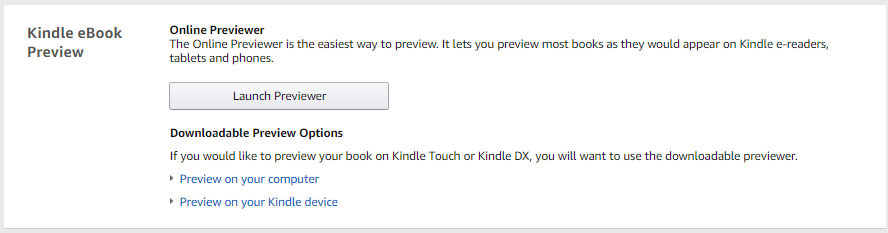
Older screen: the Kindle Touch and Kindle DX download options are gone; use the free Kindle Previewer app instead.
ISBN (Optional)
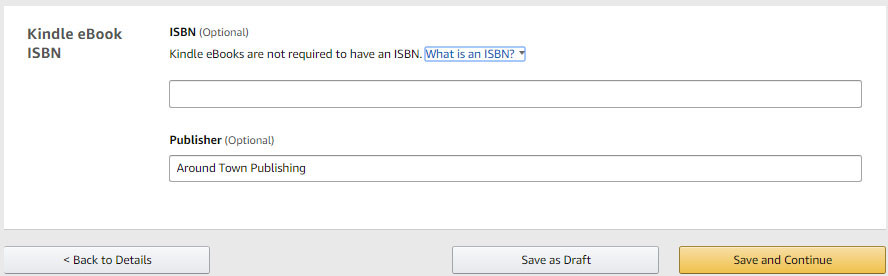
You don’t need an ISBN to publish a Kindle eBook — Amazon assigns its own identifier, the ASIN. If you already own an ISBN for the eBook edition, you can enter it here.
Click Save and Continue.
Step 5: Set Your Price and Royalty
KDP Select (Optional)
Enrolling in KDP Select makes your eBook exclusive to Amazon for 90 days. In return, it joins Kindle Unlimited — where you are paid per page read — and you can run free promotions for up to 5 days in each 90-day period. It is also required for the 70% royalty on sales in Brazil, Japan, Mexico, and India. If you plan to sell on Apple Books, Kobo, or Google Play as well, leave it unticked.
Territories
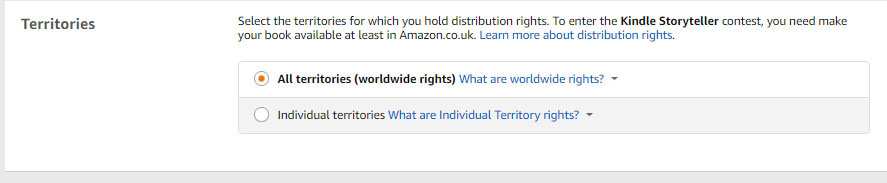
Select All territories (worldwide rights) if you wrote the book and haven’t sold the rights to anyone else. Choose individual territories only if your rights are limited to certain countries.
Royalty Plan and Price
KDP offers two royalty options:
- 70% royalty — for list prices between $2.99 and $12.99 on Amazon.com (the band rose from $9.99 on 7 July 2026). A small delivery cost of $0.15 per megabyte of file size is deducted from each sale.
- 35% royalty — for prices below $2.99 or above $12.99, with no delivery cost.
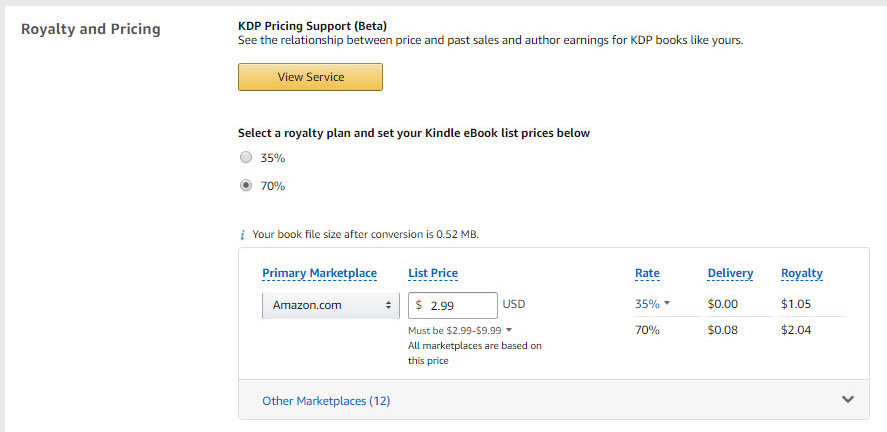
Older screen: the 70% band shown here ($2.99–$9.99) is now $2.99–$12.99.
Prices for other Amazon marketplaces are calculated automatically from your US price, and you can adjust each one. Use our KDP Royalty Calculator to see exactly what you’ll earn at different prices, and check KDP’s list price requirements.
Step 6: Publish Your Kindle eBook
Review all three tabs, then click Publish Your Kindle eBook. Your book shows as “In review” on your Bookshelf. Most books go live within 24 hours, and KDP says to allow up to 72 hours. You’ll receive an email when it’s available.
After You Publish
- Check your book page — open your Amazon listing and use “Look Inside” to confirm everything displays correctly.
- Set up your author page — claim your books in Amazon Author Central and add a bio and photo.
- Fix typos any time — you can upload a corrected file, and it goes through review again. See our eBook corrections service for quick text fixes.
- Add a paperback — publish a print edition from the same KDP title. Print needs its own interior file — see KDP Print Paperback formatting.
- Grow your sales — see our strategies to increase eBook sales on Amazon.
Common Reasons KDP Rejects or Delays a Book
- The title or author name on the cover doesn’t match the details you entered.
- Formatting problems — a broken table of contents, blank pages, missing content, or text that doesn’t display correctly.
- Content copied from the public domain or the web without disclosure, or without enough original material.
- The cover is too small, or includes prices or promotional text.
- Keywords or the description include other authors’ names, or claims such as “bestseller” that aren’t true.
Our free Kindle Formatting Checklist covers the 25 manuscript issues behind most of these problems.
Frequently Asked Questions
How much does it cost to upload a book on Amazon Kindle?
Nothing. Publishing through KDP is free — Amazon takes its share only when you make a sale, through the royalty split.
How long does it take for my book to appear on Amazon?
Usually within 24 hours, and KDP says to allow up to 72 hours after you click Publish.
Do I need an ISBN for a Kindle eBook?
No. Amazon assigns every Kindle eBook an ASIN. You only need an ISBN if you want to use your own for the eBook edition. (Paperbacks do need one, and KDP can provide it for free.)
What file format should I upload to Kindle?
DOCX, EPUB, or KPF. MOBI is no longer accepted. For books with images, tables, or special formatting, a well-built EPUB or KPF gives the most reliable result.
Can I upload a PDF to Kindle?
PDFs usually convert poorly, because they store text as fixed pages rather than flowing paragraphs. Convert your book to a formatted Word file or EPUB first — or have it converted by hand.
Can I change my price or file after publishing?
Yes. You can edit your price, description, keywords, and manuscript at any time from your Bookshelf. Changes go through a short review before they appear.
Want your Kindle file done right the first time?
Ebookifi hand-codes Kindle files that upload cleanly — checked in Kindle Previewer, delivered in 72 hours, from $30. New customers save 15% with code FIRSTBOOK.


Comments (3)
thank you. I write mostly in Assamese language, for children as well as for adults.
If I should include pictures in my book, what amount of pixels should they be? Is there a limit to the amount of pictures I can include?
Thanks for the detailed video. I have recently hired ebook writer and will do the ebook marketing on my own. I heard about selling ebook on Amazon and really gald to find a detailed article on how to to go about it.