
How to Increase eBook Sales on Amazon in 2026: 10 Proven Ways
Last updated: September 2026 — rewritten with current KDP tools, promotions, and pricing rules.
Publishing your book on Amazon is only half the job. With millions of Kindle eBooks competing for attention, the books that sell are the ones that look professional, are easy to find, and give readers a reason to click “Buy now”. The good news: most of what drives sales is in your control, and much of it is free.
A clean, professionally converted file is the first step. See our hand-coded eBook conversion services.
Here are 10 proven ways to increase eBook sales on Amazon in 2026, using the tools KDP gives every author today.
10 ways to sell more eBooks on Amazon
- Make the “Look Inside” preview flawless
- Use a cover that works as a thumbnail
- Choose 3 precise categories
- Fill all 7 keyword slots
- Write a description that sells
- Price inside the 70% royalty band
- Decide on KDP Select and use its promotions
- Add A+ Content to your detail page
- Run small, focused Amazon Ads
- Build your author platform and reviews
In this guide
- 1. Make the “Look Inside” Preview Flawless
- 2. Use a Cover That Works as a Thumbnail
- 3. Choose 3 Precise Categories
- 4. Fill All 7 Keyword Slots
- 5. Write a Description That Sells
- 6. Price Inside the 70% Royalty Band
- 7. Decide on KDP Select and Use Its Promotions
- 8. Add A+ Content to Your Detail Page
- 9. Run Small, Focused Amazon Ads
- 10. Build Your Author Platform and Reviews
- Mistakes That Quietly Kill eBook Sales
- Frequently Asked Questions
1. Make the “Look Inside” Preview Flawless
Before most readers buy, they open the free sample or “Look Inside” preview. That first chapter is your sales pitch. Broken formatting, missing indents, odd fonts, or a table of contents that doesn’t work will send readers straight back to the search results — and if customers report formatting problems, KDP can flag the book and ask you to fix it.
Start with a clean, well-structured manuscript (our free Word templates and Kindle Formatting Checklist help), have it professionally edited, and preview the finished file in Kindle Previewer on phone, tablet, and e-reader sizes. For a file that’s hand-coded and checked on real devices, see our Kindle Conversion service.
2. Use a Cover That Works as a Thumbnail
On Amazon, shoppers first see your cover as a small thumbnail in search results — often smaller than a postage stamp on a phone. A cover that looks great at full size can turn into an unreadable blur. Test yours at thumbnail size and check that:
- The title is readable at a glance, with no more than two fonts.
- The image and colours signal the genre instantly (readers judge genre in a second).
- There is no clutter — one strong focal point beats five small ones.
- The file meets KDP’s size: 2,560 × 1,600 pixels is ideal. See our eBook cover size guide.
Avoid generic template covers — they make a book look like everyone else’s. Our cover design service starts at $40.
3. Choose 3 Precise Categories
KDP lets you choose up to three categories for your eBook. Categories decide which bestseller lists your book can appear on, so a precise, less crowded category can make it far easier to earn an orange “#1 Best Seller” badge than a huge general one.
To research: search Amazon for books like yours, open the detail pages of successful ones, and scroll to “Best Sellers Rank” to see which categories they rank in. Then compare how well-selling the top books in each category are. Choose categories that honestly match your book — a book in the wrong category gets poor reviews from the wrong readers.
Every book’s Best Sellers Rank shows two things: its overall rank in the store, and its rank inside each category. The two examples below compare a crowded category with more specific ones. The first book sits at #468 in Reincarnation, a long way from that category’s top 100:

The second book ranks #34,620 overall. Its categories are more specific, so it reaches the top 100 in three of them: #37 in Near-Death Experiences, #52 in Science & Religion, and #74 in Eschatology. That top-100 visibility is what precise categories give you:

4. Fill All 7 Keyword Slots
You get seven keyword boxes, and each one can hold a short phrase — use all of them. Good keywords are the phrases readers actually type, such as “cozy mystery with cats” or “budget meal prep for beginners”, not single generic words.
- Use Amazon’s search bar. Start typing a topic in the Kindle Store and note the autocomplete suggestions — these are real reader searches.
- Don’t repeat words already in your title, contributors, or categories.
- Think like a reader — setting, character types, plot themes, and tone (“coming of age”, “strong female lead”) all make good keywords.
- Avoid other authors’ names, quality claims (“best novel ever”), time-sensitive words (“new”, “on sale”), and program names like “Kindle Unlimited” — KDP’s keyword guidelines don’t allow them.
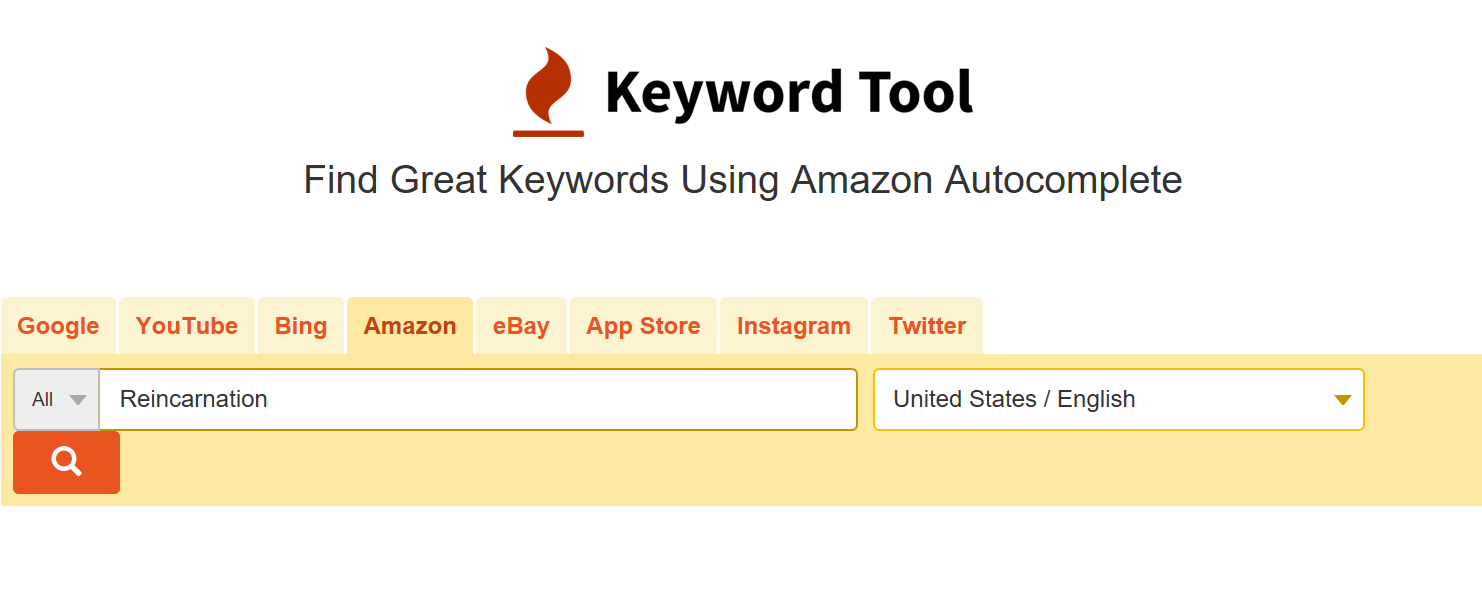
To see many suggestions at once, free third-party tools such as Keyword Tool collect Amazon’s autocomplete suggestions for a topic. Type your subject, as in this example for “reincarnation”:
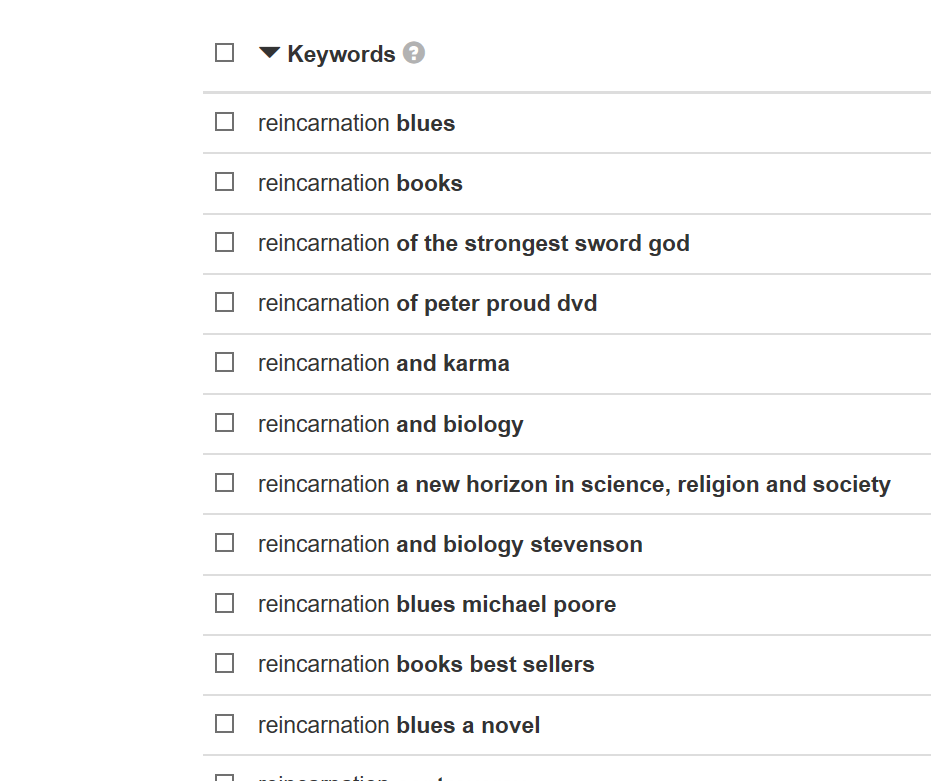
The tool returns the phrases shoppers type on Amazon. Pick the ones that genuinely describe your book, and skip other books’ titles, author names, and phrases like “best sellers”, which KDP doesn’t allow as keywords:
5. Write a Description That Sells
Your book description (up to 4,000 characters) is your back-cover copy. Only the first few lines show before “Read more”, so lead with a hook — the conflict, the promise, or the problem your book solves — not a summary of chapter one.
- Open with one strong, short line in bold.
- Keep paragraphs short; use a bulleted list for non-fiction benefits.
- Mention comparable authors or series only in a reader-friendly way (“For fans of…”).
- End with a simple call to action: “Scroll up and grab your copy today.”
6. Price Inside the 70% Royalty Band
From 7 July 2026, KDP’s 70% royalty applies to Kindle eBooks priced $2.99 to $12.99. Outside that range you earn 35%, so a $1.99 book earns you less than a third of a $2.99 book. For most genre fiction, a price from $2.99 to $4.99 is competitive; non-fiction and specialist books can often go higher.
Keep your file size lean: on the 70% plan, KDP deducts a delivery cost of $0.15 per MB for every copy sold, so a file bloated with oversized images quietly cuts into every royalty. Try different prices and file sizes in our free KDP royalty calculator.
7. Decide on KDP Select and Use Its Promotions
KDP Select is a free, 90-day program for Kindle eBooks. While enrolled, your eBook must be exclusive to Amazon — you can’t sell the digital edition on Apple Books, Kobo, or your own site. In return you get:
- Kindle Unlimited — subscribers read your book and you’re paid from the monthly KDP Select Global Fund, based on pages read for the first time.
- One promotion per 90-day term, either:
- a Kindle Countdown Deal — a time-limited discount of up to 7 days on Amazon.com and Amazon.co.uk (list price $2.99–$24.99, and you keep your 70% rate on the discounted price), or
- a Free Book Promotion — your eBook free for up to 5 days, to attract new readers and reviews.
- The 70% royalty in Brazil, Japan, India, and Mexico.
Select or wide? Select often suits new authors and fast-reading genres like romance, thrillers, and fantasy, where Kindle Unlimited readers are most active. “Going wide” — selling on every store — builds income that doesn’t depend on one retailer, and needs an EPUB file alongside your Kindle file. Our Kindle + ePub Bundle gives you both. Read which eBook formats you need for more.
8. Add A+ Content to Your Detail Page
A+ Content lets you add images, comparison tables, and extra text below your book description — the same rich layout big brands use. It’s free and is set up in the Marketing section of KDP under “Manage A+ Content”. Use it for:
- A banner showing the cover alongside a strong review quote or tagline.
- A comparison table of the other books in your series, so readers buy the next one.
- Illustrated pages or sample recipes, for cookbooks and children’s books.
A+ Content is reviewed by Amazon before it goes live, so follow the A+ Content Guidelines — no prices, promotions, or claims you can’t support.
9. Run Small, Focused Amazon Ads
Sponsored Products ads place your book in Amazon search results and on other books’ detail pages, and you only pay when a shopper clicks. You can start from your KDP Bookshelf using “Promote and advertise”.
- Start small. Set a modest daily budget and run ads for at least a couple of weeks before judging results.
- Target precisely. Target keywords and books that are genuinely similar to yours.
- Fix the page first. Ads bring shoppers to your detail page — if the cover, description, or preview is weak, you pay for clicks that don’t convert.
Amazon offers free courses and guides for authors through the KDP advertising help pages.
10. Build Your Author Platform and Reviews

Long-term sales come from readers who follow you from one book to the next.
- Claim your Amazon Author Central page. Add a photo and biography, and link all your books. Readers can tap “Follow”, and Amazon can then notify your followers when you release a new book or open a pre-order.
- Build an email list. A simple author website with a free sign-up (a bonus chapter or short story works well) gives you readers you can reach directly on launch day.
- Use your back matter. At the end of your eBook, add a short, polite request for a review, a link to your next book, and your newsletter sign-up.
- Get honest reviews the right way. Send advance copies to readers on your list, but never pay for reviews, swap reviews with other authors, or ask friends and family to review — Amazon removes such reviews and can act against your account.
- Write a series. Every new book sells the earlier ones. A pre-order (which KDP now lets you set up to 18 months in advance) builds momentum before launch day.
- Add a paperback. A print edition on the same page gives readers a choice and makes your eBook price look like a bargain. See KDP Print Paperback formatting.
Mistakes That Quietly Kill eBook Sales
- Launching before the book is ready — early one-star reviews for typos or formatting are hard to recover from. Already published with errors? Our eBook corrections service fixes live files.
- Pricing at $0.99 or $1.99 permanently — you earn 35%, and readers can read a very low price as low quality.
- Choosing broad categories where your book will never reach a visible rank.
- Spending on ads before fixing the cover and description.
- Publishing once and forgetting — revisit your keywords, categories, and description every few months.
Frequently Asked Questions
How can I increase eBook sales on Amazon quickly?
Choose three precise categories, fill all seven keyword slots with phrases readers search for, and use a cover that stands out as a thumbnail. Then use a KDP Select promotion or small Amazon Ads campaign to put the book in front of new readers.
What is the best price for a Kindle eBook?
For most books, $2.99 to $4.99. Anything from $2.99 to $12.99 qualifies for the 70% royalty, while prices below $2.99 earn only 35%.
Is KDP Select worth it?
It can be, especially for new authors and genres popular with Kindle Unlimited readers. The trade-off is 90 days of eBook exclusivity to Amazon. If you want to sell on Apple Books, Kobo, and other stores, stay out of Select.
Do free book promotions help sales?
They can bring in new readers and reviews, especially for the first book in a series. Free downloads rank on the Free list, not the Paid list, so the benefit comes from the readers who go on to buy your other books.
How many reviews do I need to sell books on Amazon?
There’s no magic number, but a steady flow of honest reviews builds trust. Ask readers politely in your back matter and email list — never pay for reviews.
Give your book a professional first impression
Hand-coded Kindle and ePub files, tested on real devices and delivered in 72 hours — from $30. New customers save 15% with code FIRSTBOOK.

Leave a Reply