
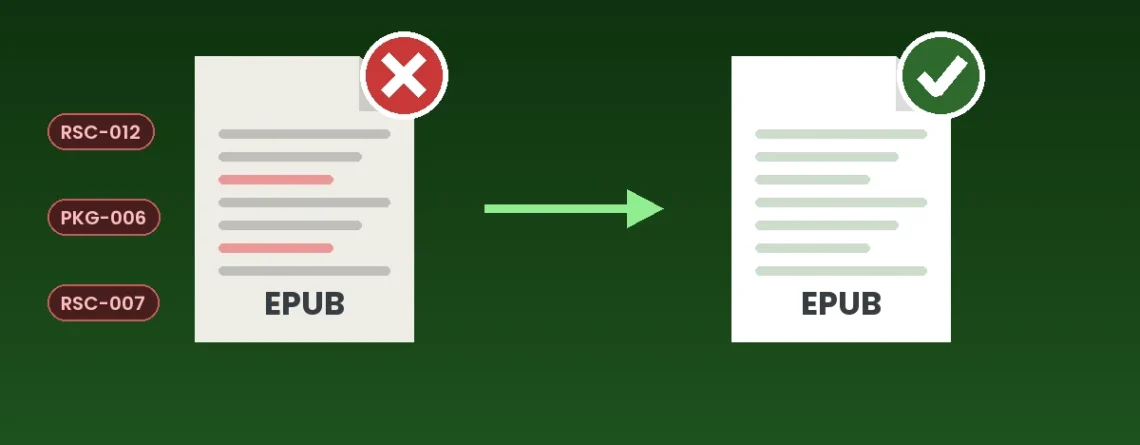
How to Fix EPUBCheck Errors and Repair an EPUB File
Last updated: October 2026 — error codes and message text checked against EPUBCheck’s official message list.
EPUBCheck is the official validator for EPUB files. It reads every file inside your eBook and reports anything that breaks the EPUB rules — a missing image, a broken link, a page with invalid code, a file packaged in the wrong order. If your EPUB fails EPUBCheck, stores can reject it, and even when they don’t, the problems that EPUBCheck reports are often the ones readers see as blank pages, dead links or missing pictures.
This guide shows you how to run EPUBCheck, how to read its report, what the most common error codes mean, and how to fix each one — so you can repair an EPUB file yourself when the problems are simple, or recognise when it needs professional EPUB repair.
How to fix EPUBCheck errors — quick steps
- Run EPUBCheck on your EPUB and save the report.
- Fix the errors from the top of the list. One mistake often causes several errors further down.
- Re-package the EPUB correctly — the
mimetypefile must come first, uncompressed. - Run EPUBCheck again and repeat until it reports 0 fatal errors and 0 errors.
In this guide
What Is EPUBCheck?
EPUBCheck is the official conformance checker for EPUB publications. It is maintained by the DAISY Consortium on behalf of W3C, the organisation that publishes the EPUB standard, and it is free and open source. It checks EPUB 3 files against the current EPUB 3 specification and can also check older EPUB 2 files.
Two things are worth knowing before you start:
- EPUBCheck only reports problems — it doesn’t fix them. The repair is up to you (or whoever built the file).
- Stores rely on it. Apple’s publishing guide, for example, states that EPUB books submitted to Apple Books must pass the most recent version of EPUBCheck. Always check with the latest release, because each version updates its rules.
How to Run EPUBCheck
EPUBCheck is a command-line program that runs on Java. Download the latest release from the official EPUBCheck page on GitHub (github.com/w3c/epubcheck), unzip it, and run it from a terminal or command prompt:
java -jar epubcheck.jar mybook.epubA few options are especially useful when you are fixing a file:
--mode expchecks an unzipped EPUB folder instead of a packaged.epubfile — handy while you are editing.--save, used together with--mode exp, packages the folder into a correct .epub file after checking it. This avoids the most common packaging error (see PKG-006 below).--usagealso shows advisory “usage” messages, including several accessibility suggestions.--json report.jsonsaves the full report to a file.
No Java, or not comfortable with the command line? Use our free EPUB Validator. It runs EPUBCheck’s rules in your web browser, shows every error with its file and line number, and your EPUB is never uploaded. It matches the official EPUBCheck’s pass or fail verdict on about 97% of its developers’ test files, so run the official tool too before an important release.
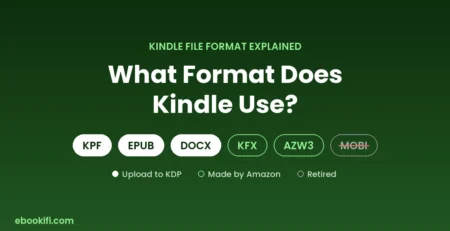
If you are publishing on Amazon, also open your file in Kindle Previewer, which KDP recommends for checking how an EPUB converts before you upload it. Our guide to the Kindle file format explains how Kindle files relate to EPUB.
How to Read an EPUBCheck Report
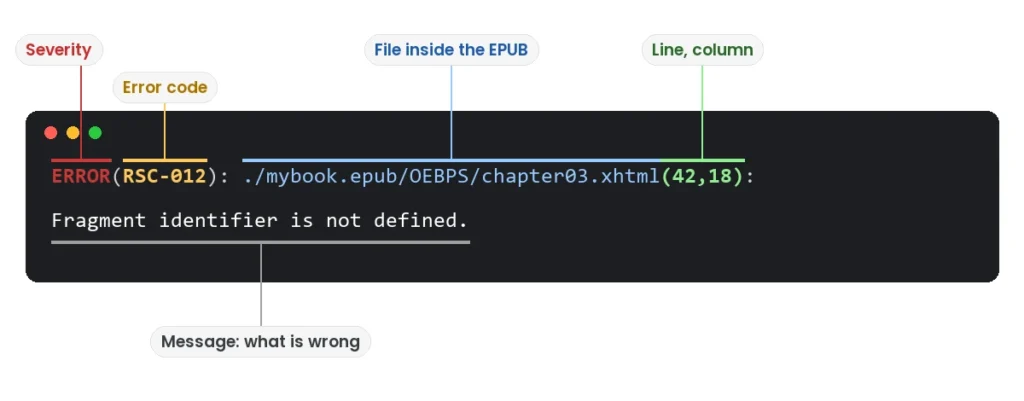
When your file passes, EPUBCheck ends with “No errors or warnings detected.” When it doesn’t, it lists each problem on its own line, then a summary such as “Messages: 0 fatals / 3 errors / 1 warning / 0 infos”. Each line follows the same pattern:
ERROR(RSC-012): ./mybook.epub/OEBPS/chapter03.xhtml(42,18): Fragment identifier is not defined.- Severity —
ERRORhere. The levels are FATAL, ERROR, WARNING, USAGE and INFO. - Message code —
RSC-012. Codes are grouped by area: PKG (packaging), OPF (the package file), RSC (resources and links), HTM (content pages), CSS (styles), MED (media), NCX/NAV (navigation), ACC (accessibility). - Location — the file inside the EPUB, then the line and column:
chapter03.xhtml, line 42, column 18. Open that file and go straight to that spot. - Message — what is wrong, in plain words.
Common EPUBCheck Errors and How to Fix Them
These are the messages we see most often when authors send us files that have been rejected or that “nearly” work. The quoted text is EPUBCheck’s own wording.
PKG-006 and PKG-007 — the mimetype file
“Mimetype file entry is missing or is not the first file in the archive.” An EPUB is a ZIP file with strict rules: a file called mimetype must be the very first entry and must be stored without compression. Ordinary zip tools don’t do this, so this error usually appears after someone unzips an EPUB, edits it and zips it back up. PKG-007 means the mimetype file contains something other than exactly application/epub+zip — often an extra space or line break.
Fix: make sure mimetype contains only application/epub+zip, then re-package with EPUBCheck’s --mode exp --save option, or with an EPUB editor that packages files correctly.
RSC-016 and RSC-005 — invalid page code
“Fatal Error while parsing file” (RSC-016) means EPUBCheck could not read the file at all — typically an unclosed tag, tags that overlap, or a bare & that should be written &. EPUB pages are XHTML, which is stricter than ordinary web HTML. “Error while parsing file” (RSC-005) means the file could be read but breaks the rules — for example an element placed where it isn’t allowed, an outdated tag such as <font> or <center>, or two elements with the same id.
Fix: go to the line and column in the report and correct the code there. Fix fatal errors first; a single unclosed tag can produce many errors further down the same file.
RSC-007 — a referenced file can’t be found
“Referenced resource … could not be found in the EPUB.” A page links to an image, font, stylesheet or another page that isn’t in the file. Common causes are a wrong folder path, a file that was deleted or never added, and capital-letter mismatches — Cover.JPG and cover.jpg are different files inside an EPUB.
Fix: correct the path in the link, or add the missing file to the EPUB (and to the manifest — see the next error).
RSC-008 — a file isn’t declared in the manifest
“Referenced resource … is not declared in the OPF manifest.” Every file inside an EPUB must be listed in the package file (the .opf) with its correct media type. The file exists, but the book’s index doesn’t know about it.
Fix: add an <item> entry for the file to the manifest in the OPF, with a unique id and the right media type (for example image/jpeg).
RSC-012 — broken links inside the book
“Fragment identifier is not defined.” A link points to a specific spot — such as chapter03.xhtml#note-12 — but no element with id="note-12" exists. This is the error behind dead table-of-contents entries and footnotes that go nowhere.
Fix: add the missing id to the target element, or correct the link so it matches an id that exists.
RSC-020 — an invalid link address
“… is not a valid URL.” Usually caused by spaces or special characters in file names or links, such as Chapter 1.xhtml.
Fix: rename files without spaces (for example chapter-01.xhtml) and update every link and manifest entry that refers to them.
OPF-014 — a property should be declared
“The property … should be declared in the OPF file.” EPUB 3 requires the manifest to flag pages that contain certain features — for example scripted for JavaScript, svg for inline SVG graphics, or remote-resources for anything loaded from the internet.
Fix: add the named property to that page’s properties attribute in the manifest — or remove the feature if it isn’t needed.
OPF-030, OPF-085 and NCX-001 — the book’s identifier
These all concern the book’s unique identifier. OPF-030 (“The unique-identifier … was not found”) means the package points to an identifier that doesn’t exist. OPF-085 means an identifier marked as a UUID isn’t a valid UUID. NCX-001 means the identifier in an EPUB 2 navigation file (toc.ncx) doesn’t match the one in the OPF.
Fix: make sure the OPF’s unique-identifier matches the id of a <dc:identifier> element, that any UUID is correctly formed, and that the NCX uses the same identifier.
HTM-004 — irregular DOCTYPE
“Irregular DOCTYPE: found …, expected …” The declaration at the top of a page doesn’t match the EPUB version. EPUB 3 pages should start with <!DOCTYPE html>. This often appears when old EPUB 2 pages are reused in an EPUB 3 book.
Fix: replace the DOCTYPE line with the one EPUBCheck says it expected.
CSS-008 — the stylesheet can’t be read
“An error occurred while parsing the CSS.” A syntax mistake in the stylesheet — a missing brace or semicolon, or stray characters copied from another program.
Fix: correct the CSS at the reported line. A single missing } can make every rule after it fail.
MED-004 — a damaged image
“Image file header may be corrupted.” The image is damaged, or its file extension doesn’t match its real format — for example a PNG saved with a .jpg name.
Fix: re-export the image from its original in the correct format, and make sure the manifest media type matches.
OPF-096 — content readers can’t reach
“Non-linear content must be reachable, but found no hyperlink to …” A page is marked as non-linear (outside the normal reading order — often a footnotes page) but nothing links to it, so readers could never get there.
Fix: add a link to that page from the text or the table of contents, or remove linear="no" so it appears in the reading order.
Accessibility messages (ACC)
With --usage switched on, EPUBCheck also points out accessibility gaps, such as “Html ‘a’ element must have text” (ACC-004) for links with no readable text, and table messages (ACC-005, ACC-006) for tables without proper header cells. They won’t stop a book from validating, but they make the book harder to use with a screen reader — and accessibility is increasingly expected by readers and stores.
Errors vs Warnings: What Must Be Fixed?
- FATAL and ERROR — always fix. These mean the file breaks the EPUB rules. A file with errors fails EPUBCheck.
- WARNING — fix wherever you can. The file can still validate, but warnings often point to real display problems or to rules that may become errors in future versions.
- USAGE and INFO — advisory. Best-practice suggestions, many of them about accessibility. Worth fixing for a professional result, but they don’t make a file invalid.
Aim for 0 fatal errors and 0 errors before you upload anywhere, and clear the warnings if you can.
Why EPUB Files Fail EPUBCheck
- Exports from Word, InDesign or online converters that carry over formatting code the EPUB rules don’t allow.
- Hand edits that rename or move a file without updating every link to it.
- Re-zipping with an ordinary zip tool, which breaks the required file order.
- Old EPUB 2 files checked against today’s EPUB 3 rules.
- Images and fonts added without being declared in the manifest.
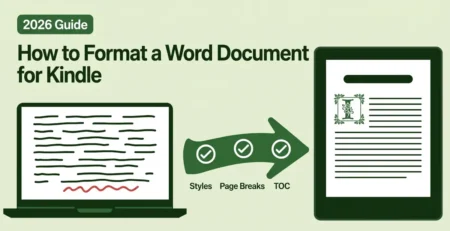
Many of these start in the manuscript itself. Our free formatting checklist covers the Word habits that cause trouble later.
Fixing It Yourself vs Professional EPUB Repair
A handful of clear errors — a missing id, a file name with a space, a packaging problem — are quick to fix with an EPUB editor and a second EPUBCheck run. It gets harder when the report lists dozens of errors across many files, when the same mistake repeats in every chapter, or when the file was produced by a converter and the code underneath is messy. At that point, repairing line by line can take longer than rebuilding the book cleanly.
While you’re fixing errors, check the book’s metadata too. EPUBCheck only requires a title, language and identifier, so a file can pass with no cover set, no start reading location and no accessibility information. Our free EPUB Metadata Checker lists what’s missing in about a second.
That’s where our eBook validation and repair service comes in: a specialist diagnoses the real cause, repairs your EPUB (or Kindle or print file), and re-validates it before it comes back to you — from $20, within 72 hours. If the file is beyond sensible repair, a clean hand-coded ePub conversion is often the better route.
EPUBCheck FAQ
Does KDP use EPUBCheck?
KDP doesn’t publish EPUBCheck as a requirement. Its own guidance is to check EPUB files in Kindle Previewer before uploading. A file that passes EPUBCheck is still the best starting point, because Kindle Previewer converts it far more reliably.
Will Apple Books reject an EPUB with errors?
Apple’s publishing guide states that EPUB books submitted to Apple Books must pass the most recent version of EPUBCheck, and Apple runs its own validation on top. Fix every error before submitting.
Can I ignore EPUBCheck warnings?
A file with warnings but no errors still passes. Warnings are worth fixing, though: many point to real display problems, and a warning today can become an error in a later EPUBCheck release.
Can EPUBCheck fix my file?
No. EPUBCheck only reports problems. The one exception is packaging: with --mode exp --save it can build a correctly packaged EPUB from an unzipped folder.
Why does one mistake cause dozens of errors?
Because problems cascade. An unclosed tag can make the rest of a page unreadable to the checker, and one renamed file can break every link to it. Fix the first errors in the report, run EPUBCheck again, and the list often shrinks dramatically.
Does converting with Calibre fix EPUBCheck errors?
Sometimes it hides one problem and introduces another, because a conversion rewrites your file rather than repairing it. Whatever tool you use, run EPUBCheck again on the result before publishing.
I only need to change some text, not fix errors. What should I do?
If your EPUB already validates and you just need a typo or a paragraph changed, our eBook corrections service edits the file directly and keeps it valid.
Need Your EPUB Fixed?
Send us the file and the EPUBCheck report (or the store’s rejection message). A specialist finds the real cause, repairs the file, and re-validates it before it comes back — from $20, within 72 hours, with a lifetime warranty on the repair. See our eBook validation and repair service →


Leave a Reply